
Developing for Nordic’s nRF52 series (like the nRF52832 and nRF52840) requires a powerful yet efficient toolchain. With multiple IDEs officially supported, developers often face decision fatigue. Let’s explore why Segger Embedded Studio (SES) stands out as the smartest choice for your BLE and IoT projects.
Overview: Official nRF52 Development Environments
Nordic Semiconductor officially supports four primary development environments:
- ARM Keil MDK: Industry-standard ARM IDE ($$$ license required)
- IAR Embedded Workbench: Commercial-grade toolchain ($$$ license required)
- ARM GNU Toolchain + Makefiles: Free but command-line heavy
- Segger Embedded Studio (SES): Free for Nordic users with full IDE experience
While all options have merits, Keil and IAR carry significant licensing costs and complex dependency chains. The GNU solution requires deep toolchain expertise. This leaves SES as the goldilocks solution – powerful yet accessible.
🚀 Why Segger Embedded Studio is Your Best Choice
1. Zero-Cost Licensing for Nordic Developers
Unlike Keil/IAR (which require $2K+/seat licenses), SES is completely free when used with Nordic chips. No feature restrictions or trial limitations.
2. All-in-One Installation
SES bundles everything in a single 300MB installer:
- ✅ ARM compiler (GCC-based)
- ✅ J-Link debug probe integration
- ✅ Nordic SDK templates
- ✅ Real-time terminal
No hunting for toolchain components or managing PATH variables!
3. Unmatched Debugging Capabilities
SES integrates J-Link debugging tools natively:
- Live variable tracking during runtime
- Real-time memory inspection
- RTT (Real-Time Transfer) console
- Power profiling for energy optimization
4. Nordic-Specific Optimizations
SES understands nRF52 architecture intimately:
- Automatic SoftDevice (BLE stack) configuration
- Pre-configured flash & RAM partitioning
- Built-in support for Nordic’s DFU (OTA updates)
5. Cross-Platform Compatibility
Runs natively on Windows, macOS, and Linux – unlike Keil (Windows-only).
💻 Getting Started with Segger Embedded Studio
Step 1: Download SES (Select “Nordic Edition”)
Step 2: Install with default settings
Step 3: Launch SES → Create New Project → Select “nRF5 SDK Project”
Step 4: Choose your board (e.g., nRF52840 DK) and example (e.g., BLE UART)
Step 5: Build (F7) → Debug (F5) → Run (F5)
Pro Tip: Use the “Terminal I/O” tab for real-time debug logs without extra hardware!
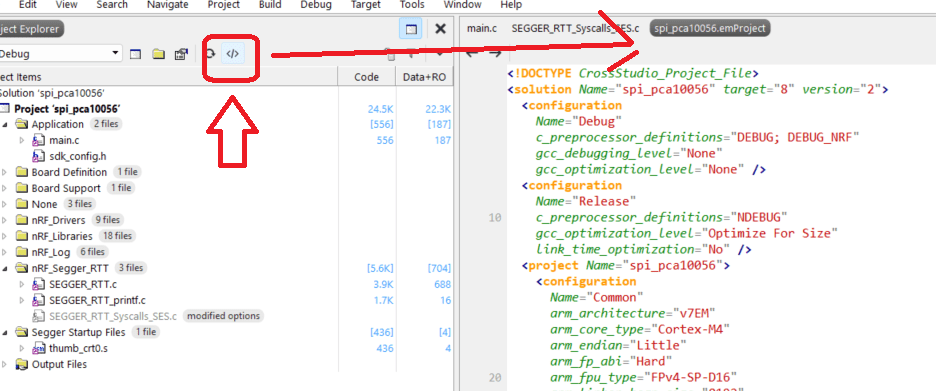
Below you will find two sections:
- Step-by-step guide (with screenshots hints) showing how an
.emProjectfile is used in SEGGER Embedded Studio (SES) to
• pull in source code,
• set compiler / pre-processor switches, and
• describe the complete memory layout (flash + RAM) for the nRF52840. - Reference table that lists every SoftDevice revision that runs on nRF52840 together with its official flash / RAM footprint and the corresponding linker-script values you must place in the
.emProject(or in the SES “Memory Map” dialog).
1. Using the .emProject file in SES to control sources, switches & memory
The instructions below assume SDK 17.1.0, SES ≥ 6.20a, and the nRF52840-DK (PCA10056).
The same concepts apply to the Dongle (PCA10059) or custom boards; only the base addresses change.
1.1 Open or create the project
- Open SES → File → Open Solution… and pick
…/examples/ble_peripheral/ble_app_uart/pca10056/s140/ses/ble_app_uart_pca10056_s140.emProject.
1.2 Tell SES which source files belong to the build
Tree view → right click “Application” → Add → Add Existing Files…
or edit the .emProject XML directly:
xml
<folder Name="Source">
    <file Name="../main.c"/>
    <file Name="../../../../components/libraries/util/app_error.c"/>
    <file Name="../../../../components/libraries/util/sdk_common.h"/>
</folder>
Every path is relative to the
.emProjectfile.
Wildcards<file Name="../../../../components/drivers_nrf/**/*.c"/>are also supported.
1.3 Global pre-processor symbols / compiler switches
Two ways:
A) GUI
Project → Options → Preprocessor → Preprocessor Definitions
Add one symbol per line, e.g.
BOARD_PCA10056
NRF52840_XXAA
S140
NRF_SD_BLE_API_VERSION=7
DEBUG
B) XML in .emProject
xml
<configuration Name="Common">
    <settings Name="Preprocessor">
        <option Name="Defines" value="BOARD_PCA10056;NRF52840_XXAA;S140;NRF_SD_BLE_API_VERSION=7"/>
    </settings>
</configuration>
1.4 Memory layout (flash and RAM)
SES does not use a GNU linker script but a SES memory map (*.map) plus an optional placement file (flash_placement.xml).
The values must match the SoftDevice you selected.
GUI method
Project → Options → Linker → Memory Map
Fill in the two regions:Table
| Region | Start | Length |
|---|---|---|
| FLASH | 0x00026000 | 0x000DA000 (872 KiB) |
| RAM | 0x20020000 | 0x00020000 (128 KiB) |
Those numbers are for S140 v7.2.0 (see table in section 2).
SES will auto-generate the*.mapfile.
XML method (edit or replace the files that ship with the SDK):
flash_placement.xml
xml
<MemorySegment name="FLASH" start="0x00026000" size="0x000DA000"/>
<MemorySegment name="RAM"   start="0x20020000" size="0x00020000"/>
Then reference it in .emProject:
xml
<configuration Name="Release">
    <settings Name="Linker">
        <option Name="MemoryMapFile" value="flash_placement.xml"/>
    </settings>
</configuration>
2. Memory layout lookup for every SoftDevice on nRF52840
| SoftDevice | Version | MBR size | SoftDevice Flash | SoftDevice RAM | App Flash start | App Flash size | App RAM start | App RAM size | Typical file name |
|---|---|---|---|---|---|---|---|---|---|
| S112 | 7.2.0 | 4 KiB | 0x1000 – 0x1BFFF (108 KiB) | 8 KiB | 0x1C000 | 1008 KiB | 0x20002000 | 248 KiB | s112_nrf52_7.2.0_softdevice.hex |
| S132 | 7.2.0 | 4 KiB | 0x1000 – 0x25FFF (148 KiB) | 12 KiB | 0x26000 | 868 KiB | 0x20003000 | 244 KiB | s132_nrf52_7.2.0_softdevice.hex |
| S140 | 7.2.0 | 4 KiB | 0x1000 – 0x25FFF (148 KiB) | 12 KiB | 0x26000 | 868 KiB | 0x20003000 | 244 KiB | s140_nrf52_7.2.0_softdevice.hex |
| S212 | 6.1.1 (ANT) | 4 KiB | 0x1000 – 0x1BFFF (108 KiB) | 8 KiB | 0x1C000 | 1008 KiB | 0x20002000 | 248 KiB | s212_nrf52_6.1.1_softdevice.hex |
| S332 | 6.1.1 (BLE+ANT) | 4 KiB | 0x1000 – 0x25FFF (148 KiB) | 12 KiB | 0x26000 | 868 KiB | 0x20003000 | 244 KiB | s332_nrf52_6.1.1_softdevice.hex |
| S340 | 6.1.1 (BLE+ANT long range) | 4 KiB | 0x1000 – 0x25FFF (148 KiB) | 12 KiB | 0x26000 | 868 KiB | 0x20003000 | 244 KiB | s340_nrf52_6.1.1_softdevice.hex |
All sizes are decimal KiB (1024 B).
MBR always lives in the first 4 KiB (0x00000000–0x00000FFF).
If you use a bootloader, subtract its size from the “App Flash size” above.
Quick copy-paste block for SES Memory Map dialog
For S140 v7.2.0 (most common):
FLASH : 0x00026000  0x000DA000
RAM   : 0x20003000  0x0003D000
For S132 v7.2.0 (identical numbers):
FLASH : 0x00026000  0x000DA000
RAM   : 0x20003000  0x0003D000
For S112 v7.2.0 (single-peripheral):
FLASH : 0x0001C000  0x000F4000
RAM   : 0x20002000  0x0003E000
TL;DR workflow checklist
- Open the
.emProjectshipped with the example. - Verify the SoftDevice subdirectory in the project name matches the hex you will flash.
- Update Preprocessor Definitions to the exact SoftDevice macro (
S112,S132,S140, …). - Update Memory Map with the start & length rows from the table above.
- Re-build (
F7) and download (Ctrl-D).
All paths, macros, and addresses are now in sync and the application will link and run correctly on nRF52840.
Here is the release note of the NRF5 SDK 17.1.0
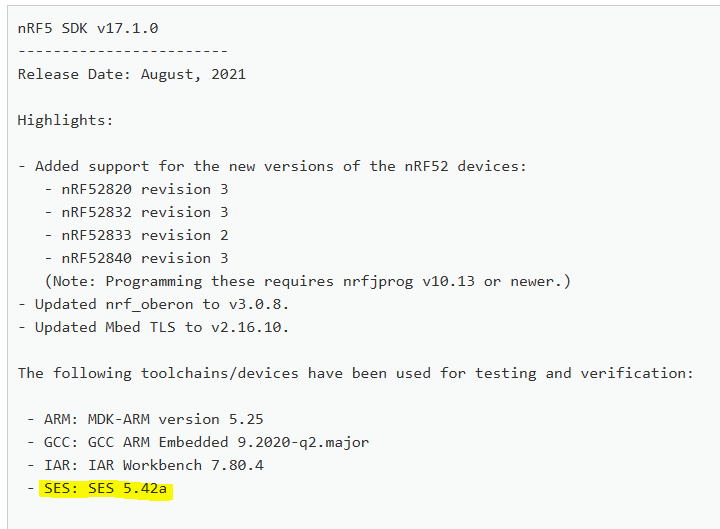
⚠️ Critical Compatibility Note: nRF5 SDK 17.1 + SES 5.42a
For projects using nRF5 SDK 17.1, stick with SES v5.42a. Newer SES versions introduced changes that break compatibility with this SDK release. You can download archived versions directly from Segger.
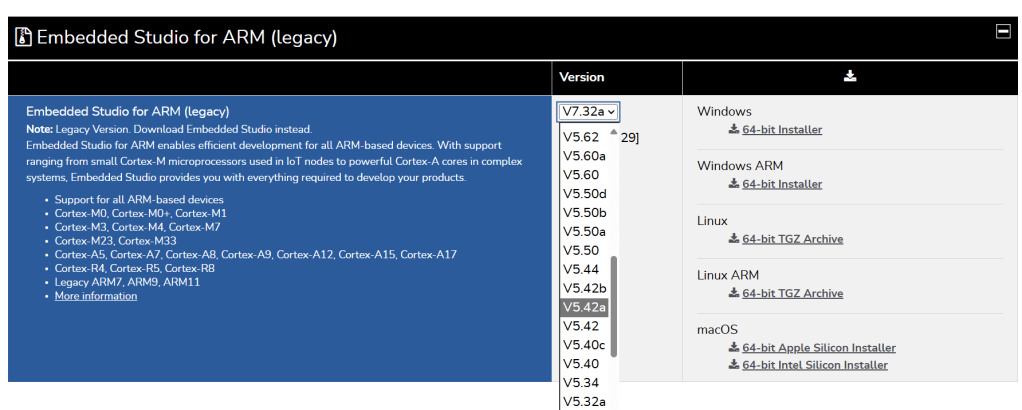
Known Issues – Segger Embedded Studio + nRF5 SDK 17.1.0
- Project does not build on SES ≥ 6.20a
Fix: set Library I/O → RTT. DevZone #86414 - Linker errors: “undefined reference to `stdout`”
Fix: add retarget layer or switch I/O to RTT. DevZone #88123 - Missing __vfprintf.h build error
Fix: removeSEGGER_RTT_Syscalls_SES.cfrom project. DevZone cross-ref - J-Link firmware mismatch → hard-fault
Fix: upgrade J-Link to ≥ V7.50. DevZone #86414 - “Erase All” fails on early PCA10056
Fix: usenrfjprog --recover. DevZone #86414 - SoftDevice 7.2.0 alignment warnings
Fix: patch generated linker script or use Nordic scripts. DevZone #87332 - DFU preprocessor macros dropped after import
Fix: re-add defines manually. DevZone #85984
Conclusion: Streamline Your nRF52 Workflow
Segger Embedded Studio eliminates the friction of traditional embedded toolchains while delivering professional-grade features. With its Nordic-specific optimizations, cross-platform flexibility, and cost-free licensing, SES isn’t just an alternative – it’s the optimal development environment for nRF52 projects. Ditch the dependency hell and licensing headaches, and let SES accelerate your path from prototype to production.
Ready to try? Grab the installer and build your first BLE application in under 10 minutes!
 JimmyIoT